
Key takeaways
- LoRA (Low Rank Adaptation) allows AI models to learn specific characters, objects, and visual styles without retraining the entire base model.
- LoRA models can be used, combined, and trained through ComfyUI workflows.
- A 2025 study found that LoRA reduced trainable parameters by over 99% in its evaluated language model configurations, and reported GPU memory usage reductions of up to 34% on a single GPU (The Alan Turing Institute).
TL;DR
LoRA is a technique that lets you customize pretrained AI models without retraining all their parameters. For image generation, it helps produce consistent characters, recognizable objects, and specific artistic styles while preserving the capabilities of the original model. This guide explains how LoRA works, why it is useful, how to download and apply LoRAs in ComfyUI, and how to combine multiple LoRAs. It also walks through training your own LoRA using a custom image dataset, adjusting training settings, and troubleshooting common problems. If you don’t have a strong GPU to run ComfyUI, you can also rent out GPU servers with Xesktop to easily apply LoRAs to your workflow.
What is LoRA in AI?
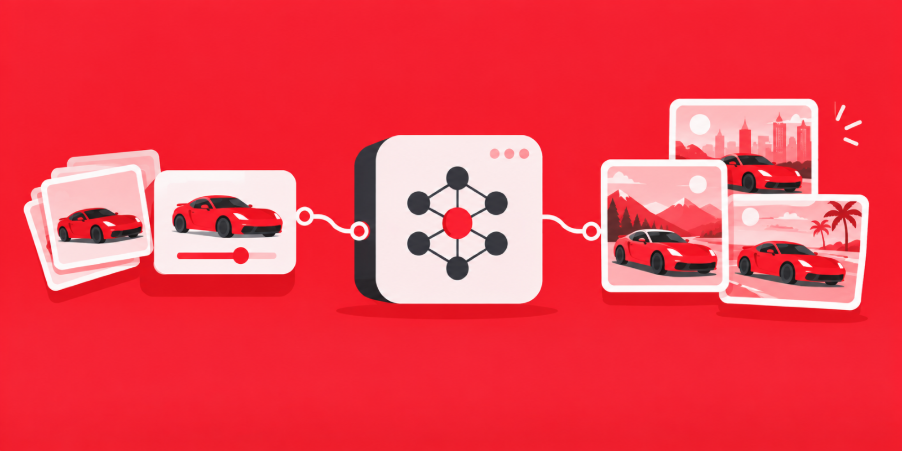
LoRA stands for Low Rank Adaptation, a technique that allows AI models to learn specialized concepts without updating all the parameters of the original model. Instead of training an entirely new model, LoRA creates a smaller set of learned adjustments that can be applied to an existing one.
In AI image generation, this means you can teach a model to recognize a particular character, reproduce a specific vehicle, or generate images in a certain artistic style. For example, you could train a LoRA using photographs of a particular car, then use it with a compatible base model to generate that car in different environments, lighting conditions, and compositions.
How does LoRA work?
AI image models learn visual patterns from their original training data. However, they might struggle to reproduce a particular object or character consistently, especially when the subject is unfamiliar or highly specific.
LoRA addresses this by introducing small, trainable matrices into selected parts of the model. During training, the original model weights remain frozen while these additional parameters learn the desired concept. When you generate an image, the LoRA adjusts how the base model processes your request. The result is a reusable adapter that adds specialized knowledge without requiring a separate, fully trained model.
Why use LoRA instead of full fine tuning?
Training an AI model can require considerable processing power, memory, and storage. LoRA makes customization more accessible because it updates a smaller portion of the model’s parameters.
A 2025 study by The Alan Turing Institute demonstrated this efficiency in large language model training. The researchers found that LoRA reduced trainable parameters by over 99% and lowered memory usage by up to 34% on a single GPU in the evaluated configurations. Although these results come from language models rather than image generation, they illustrate the resource savings that parameter efficient training can offer.
Here is how LoRA compares with full fine tuning:
| Feature | LoRA | Full fine tuning |
| Training | Updates a small set of additional parameters | Updates the original model weights |
| GPU requirements | Generally lower | Generally higher |
| Storage | Smaller adapter files | Larger model files |
| Flexibility | Adapters can be swapped or combined | Usually requires loading another model |
| Best use | Targeted concepts and styles | Extensive model adaptation |
Another advantage is flexibility. Artists can keep their preferred base model and switch between LoRAs depending on the project. One LoRA might specialize in realistic portraits, while another produces a particular illustration style or product design.
What can you create with LoRA models?
LoRAs are used for different creative purposes, depending on their training data and intended behavior.
Character and identity LoRAs

Character LoRAs help generate recognizable subjects across different images. They are useful for character design, visual storytelling, and projects that require a recurring person or fictional character. For example, a character LoRA could help maintain recognizable facial features while changing the character’s clothing, environment, or camera angle. Results can still vary, so additional controls may be needed for more demanding consistency requirements.
Style LoRAs

Style LoRAs influence an image’s overall appearance. They can help produce specific artistic treatments, including cinematic lighting, illustrations, photo-realistic renders, and cyberpunk aesthetics. These are useful when multiple images need to share a consistent visual direction.
Object and product LoRAs
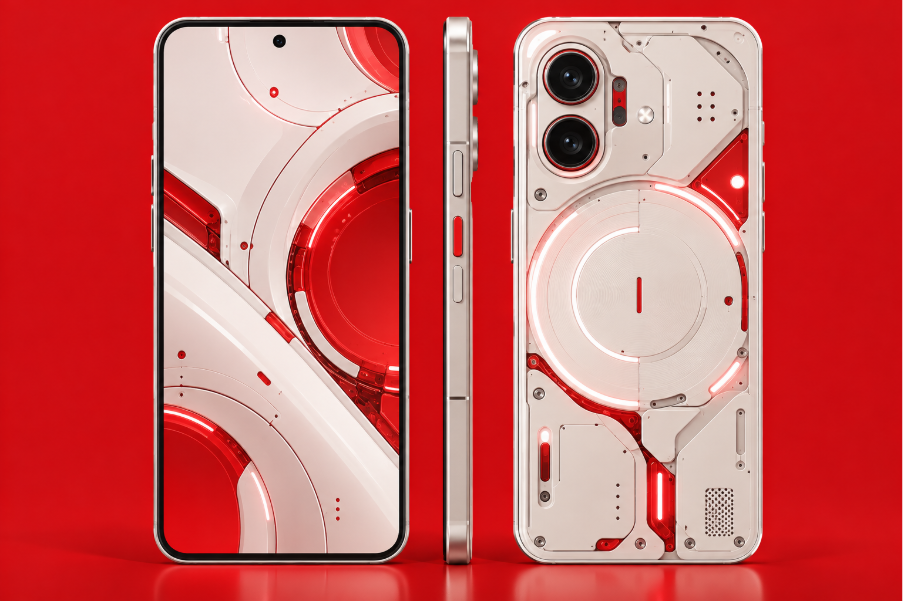
Object LoRAs focus on recognizable items such as vehicles, furniture, clothing, or product designs. A LoRA trained on a specific car, for example, can help generate images of that vehicle from different perspectives. Other LoRAs focus on narrower concepts, such as materials, costumes, textures, and visual details. These categories can overlap, since one LoRA may learn several related characteristics.
Where to find and download LoRA models
You do not need to train a LoRA from scratch to start using one. Many creators share downloadable LoRAs through platforms such as Civitai and Hugging Face.
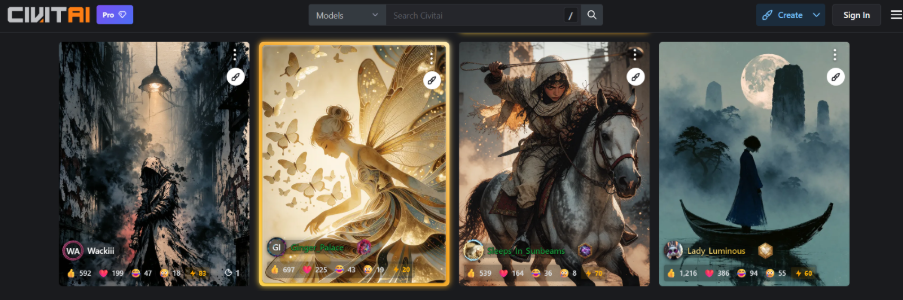
Civitai is particularly useful for browsing community image generation models. You can explore example images, filter by model compatibility, and review recommended prompts or strength settings. Hugging Face also hosts LoRA adapters, model documentation, and training resources.
Before downloading, check which base model the LoRA supports. A LoRA trained for Stable Diffusion 1.5 generally cannot be used directly with SDXL or FLUX because their architectures differ.
How to use LoRA models in ComfyUI
ComfyUI is a node based interface for building AI generation workflows. It allows you to load LoRAs, adjust their influence, and combine them with compatible base models.The following process uses ComfyUI’s standard LoRA loader. Some custom workflows use additional nodes, but the general principles remain similar.
Step 1: Install ComfyUI and prepare your model
First, install ComfyUI or open an existing installation. Make sure you have a working image generation workflow with a compatible base model, such as Stable Diffusion or FLUX. If your workflow requires additional custom nodes, install them through ComfyUI Manager or the relevant repository instructions.
Before loading a LoRA, make sure your GPU has enough VRAM for the base model and workflow. You can use a VRAM calculator for ComfyUI to estimate memory requirements based on your model, image resolution, batch size, and LoRAs.
Step 2: Download and install a LoRA
Choose a LoRA that supports your base model and download its file, commonly distributed in .safetensors format.
Place the file in the following directory:
ComfyUI/models/loras
You can create sub-folders to organize LoRAs by base model, character, or artistic style. If ComfyUI was already running when you added the file, refresh the model list or restart ComfyUI so it can detect the new LoRA.
Step 3: Add the LoRA to your workflow
In ComfyUI, add a Load LoRA node to your existing workflow. Connect the model output from your checkpoint loader to the LoRA loader’s model input. For workflows that use a compatible CLIP text encoder, connect that output as well.
Then connect the adjusted model output to your sampler , such as KSampler, and the adjusted text encoder output to your prompt encoding nodes. Select the downloaded LoRA from the loader’s dropdown menu. Some architectures use a model only LoRA loader or a different workflow configuration, so follow the documentation for your chosen model.
Step 4: Add trigger words to your prompt
Some LoRAs use trigger words, which are specific terms associated with the concepts learned during training. For example, a LoRA trained on a particular vehicle might use a unique keyword to help the model recognize the intended subject.
If the creator specifies a trigger word, include it in your prompt alongside details such as lighting, camera angle, environment, and composition. Not every LoRA requires a trigger word, so check its documentation rather than assuming one is necessary.
Step 5: Adjust LoRA strength and generate
The LoRA loader includes settings that control how strongly the adapter influences the image.
- strength_model: Controls the influence of the LoRA on the image generation model.
- strength_clip: Controls its influence on the CLIP text encoder, where applicable.
A strength of 1.0 typically applies the LoRA at its standard scale, while lower values reduce its influence. Higher values can produce a stronger effect but may also introduce unwanted details or artifacts.
Start with the creator’s recommended settings, generate a sample image, and adjust the strength as needed. For a clearer comparison, temporarily bypass the LoRA and generate the same prompt using the base model alone.
How to combine multiple LoRAs in ComfyUI
In ComfyUI, multiple LoRAs can be combined by connecting several Load LoRA nodes in sequence. Alternatively, compatible custom nodes such as RGThree Power Lora Loader can provide a more convenient interface for managing multiple adapters.
Each LoRA has its own strength setting, allowing you to balance their influence. If a style LoRA overwhelms a character’s appearance, for example, lowering the style LoRA’s strength may help preserve the character’s recognizable features.
There is no universal maximum number of LoRAs you can combine. However, adding too many can cause conflicting effects, reduced consistency, or image artifacts. Begin with a small combination and test each LoRA separately before adjusting their strengths together.
Training your own LoRA model
Training a custom LoRA gives you more control over the concepts you want an AI model to reproduce. Instead of relying on publicly available adapters, you can create one using your own collection of images.
Step 1: Prepare your training images
Start by collecting images that clearly represent your intended subject. If you are training a character LoRA, use images where the subject is recognizable and include useful variation in expressions, camera angles, and framing.
For object LoRAs, include views that help the model learn the object’s defining characteristics. Avoid unnecessary duplicates, blurry images, and unrelated subjects that could confuse the training process.
Organize your dataset in a dedicated folder. You may also need to resize the images or use a training workflow that supports different resolutions.
Step 2: Create captions for your images
Image captions describe the content of the training images and help associate visual characteristics with text. You can write captions manually or use an image captioning model such as BLIP to generate initial descriptions. Automatically generated captions should still be reviewed because incorrect descriptions can affect what the LoRA learns.
Whether captions are required depends on the training workflow. Some methods support training with minimal or no individual image captions, while others rely more heavily on descriptive text.
Step 3: Set up LoRA training in ComfyUI
To train a LoRA within ComfyUI, you need a compatible training implementation and the required model files. For FLUX training, community workflows such as KJNodes FLUX Trainer can provide nodes for loading datasets, configuring training, and saving the resulting LoRA. Install the relevant components according to the trainer’s current documentation.
Once installed, load the training workflow and confirm that all required nodes and model files are available. Set the dataset directory and output location, then review the training configuration before running it.
Step 4: Configure your training settings
Training settings influence how quickly the model learns, how much memory it uses, and how closely it reproduces your dataset.
| Setting | Purpose |
| Learning rate | Controls the size of each training update |
| Training steps | Determines how many optimization iterations are performed |
| Rank | Controls the capacity of the LoRA adapter |
| Alpha | Influences the scaling of learned adjustments |
| Batch size | Determines how many samples are processed per iteration |
| Resolution | Defines the image dimensions used for training |
Higher settings do not automatically produce better results. Training for too long on a limited dataset can cause overfitting, where the LoRA reproduces training examples too closely and struggles with new compositions.
Step 5: Start training and monitor progress
Once the configuration is ready, start the training workflow and monitor the logs for errors, memory issues, and training progress. Many trainers display a loss value that measures how well the model is fitting the training objective. A decreasing loss can indicate progress, but it does not guarantee that the generated images will look better. Reviewing sample images and saved checkpoints is more useful when evaluating visual quality.
Training duration depends on the model, dataset, hardware, resolution, and configuration. Larger models or more demanding settings may require considerable GPU memory and processing time.
Step 6: Test your trained LoRA
After training, locate the saved LoRA file and load it into a compatible image generation workflow. Start by generating images that resemble your training examples, then experiment with new prompts, backgrounds, lighting conditions, and camera angles. This helps determine whether the LoRA has learned the intended concept while remaining flexible.
Compare the results with the base model alone and test different LoRA strengths. If the output is inconsistent or introduces unwanted details, you may need to improve the dataset, adjust the training configuration, or test an earlier checkpoint.
Best practices for better LoRA results
Getting good results with LoRA involves more than selecting an adapter and increasing its strength. Model compatibility, prompting, and training data all influence the final image.
Start with the correct base model. Always confirm that the LoRA supports the model architecture you are using. An incompatible LoRA may fail to load or produce unexpected results.
Use clear and relevant training images. A dataset should represent the intended concept accurately. Include useful variation without introducing unnecessary distractions or contradictory examples.
Follow recommended settings. LoRA creators often provide suggested strengths, trigger words, and resolutions. These offer a practical starting point before experimenting.
Adjust settings gradually. Change one major setting at a time so you can identify which adjustment affects the output. Keeping prompts and generation seeds consistent can make comparisons easier.
Review the entire image. A LoRA may reproduce the intended character or object while introducing artifacts elsewhere. Check details such as faces, hands, materials, text, and backgrounds rather than evaluating only the main subject.
Common LoRA problems and how to fix them
Even with compatible models and properly configured workflows, LoRAs can produce inconsistent results. Most issues are related to installation, strength settings, prompting, or training quality.
| Problem | Possible cause | Suggested fix |
| LoRA does not appear in ComfyUI | Incorrect directory or outdated model list | Check the LoRA folder and refresh ComfyUI |
| LoRA has little visible effect | Low strength or missing trigger word | Review the creator’s instructions and adjust strength |
| Images look distorted | Excessive LoRA influence or conflicting adapters | Reduce strength and test LoRAs individually |
| Character looks inconsistent | Limited training coverage or conflicting prompts | Review training images and test different prompts |
| Training runs out of memory | Hardware cannot handle the configuration | Reduce batch size or use supported memory optimizations |
| Trained LoRA copies examples too closely | Possible overfitting | Test earlier checkpoints or revise training settings |
| LoRA does not load correctly | Incompatible base model or file format | Confirm model compatibility and file requirements |
For training problems, it can also help to check the dataset path, required dependencies, and output directory. Incorrect file paths are a common cause of workflow errors.
Run LoRA workflows on cloud GPUs
Training LoRAs and running demanding AI models like FLUX can require significant GPU power. If your computer struggles with ComfyUI, you can rent a powerful cloud GPU server like Xesktop instead.
Xesktop offers NVIDIA GPU servers with ComfyUI preinstalled, allowing you to generate images, train custom LoRAs, and run complex workflows without upgrading your hardware. With flexible usage based pricing, you can access the computing power you need without investing in an expensive GPU.
Explore Xesktop’s cloud GPU servers or check out our VRAM calculator to get started.
Frequently asked questions about LoRA
- Is LoRA the same as a checkpoint? – No. A base model checkpoint contains the weights needed for the main model, while a typical LoRA file contains additional learned adjustments. The LoRA is applied to a compatible model rather than functioning as a complete replacement.
- Can I use a LoRA with any AI image model? – No. LoRAs must be compatible with the architecture and model components they were designed for. For example, an SDXL LoRA generally cannot be used directly with a Stable Diffusion 1.5 or FLUX model.
- Do I need a powerful GPU to train LoRAs? – LoRA training is generally more resource efficient than full fine tuning, but hardware requirements vary. Larger base models, higher resolutions, and certain training configurations can still require substantial GPU memory.
- How many images do I need to train a LoRA? – There is no universal requirement. The appropriate dataset size depends on the subject, model, training method, and desired flexibility. A smaller collection of carefully selected images can be useful for a simple concept, while more complex subjects may benefit from greater variety.
- Can I use multiple LoRAs at the same time? – Yes. ComfyUI supports combining compatible LoRAs within the same workflow. Adjusting their individual strengths can help balance their effects and reduce visual conflicts.
- Can LoRAs improve character consistency? – Yes. A character LoRA can help maintain recognizable features across generated images, making it useful for recurring characters and visual storytelling. However, consistent results are not guaranteed across every prompt, pose, or camera angle.
- Can I use LoRAs for commercial projects? – Commercial use depends on the licenses and terms of the base model and LoRA, as well as the rights associated with the training data. Always review these conditions before using generated content commercially.
Conclusion
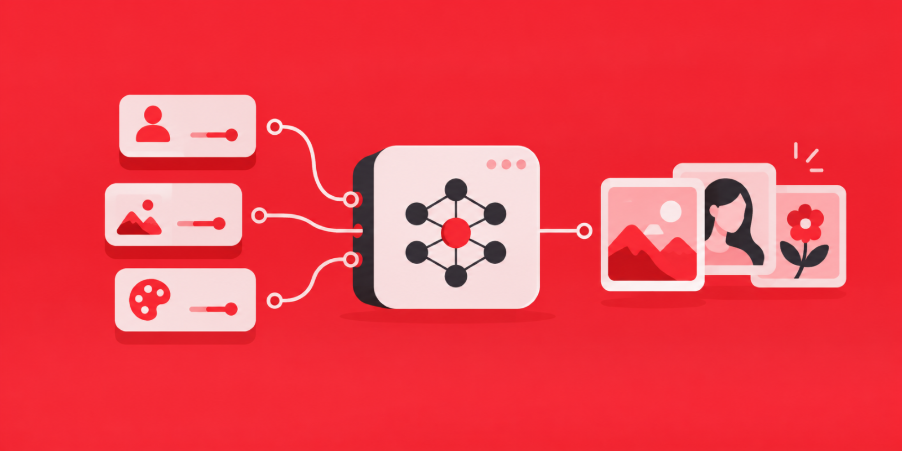
LoRA makes AI image generation more customizable by allowing artists to teach existing models specific subjects, objects, and visual styles without fully retraining them. Its relatively lightweight approach makes it useful for experimenting with different creative directions while keeping the original model available.
With ComfyUI, you can begin by downloading and testing existing LoRAs, then explore combining adapters or training your own. Understanding model compatibility, dataset preparation, and strength settings will help you create more consistent results and build workflows suited to your projects.